
What is Knowledge
Learn how the knowledge base enables your AI agents to access and reference your documents and data.
Knowledge is your agent's reference library—documents, data, and information that your AI agent can search and use when responding to questions.
How Knowledge Works
When you add documents to an agent's knowledge base, AffinityBots:
- Processes the document into smaller chunks
- Generates embeddings (vector representations) for each chunk
- Stores these embeddings in a searchable database
- Retrieves relevant chunks when the agent needs information
This process is called RAG (Retrieval Augmented Generation)—your agent retrieves relevant knowledge before generating responses.
Why Use Knowledge
| Without Knowledge | With Knowledge |
|---|---|
| Agent relies only on its training data | Agent accesses your specific documents |
| Generic responses | Responses grounded in your data |
| Can't answer company-specific questions | Answers based on your actual content |
| May hallucinate facts | References real information |
Supported File Types
You can upload various document formats:
| Format | Extension | Best For |
|---|---|---|
.pdf | Reports, manuals, documentation | |
| Word | .docx | Documents, guides, policies |
| Text | .txt | Plain text content |
| CSV | .csv | Structured data, lists |
| Excel | .xlsx | Spreadsheets, data tables |
Adding Knowledge to Your Agent
- Open your agent's configuration
- Navigate to the "Knowledge" tab
- Click "Upload Document"
- Select your file(s)
- Wait for processing to complete
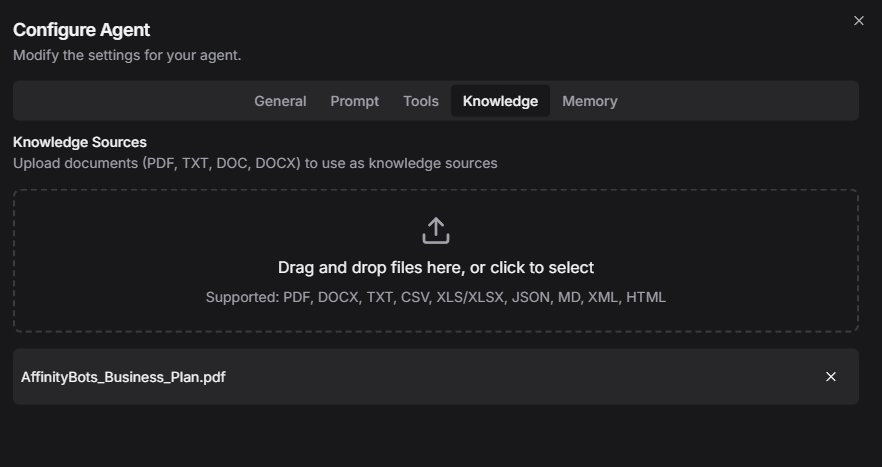
[!TIP] You can upload multiple documents at once. Each document is processed independently.
How Retrieval Works
When a user asks a question:
User Question → Search Knowledge Base → Find Relevant Chunks → Include in Agent Context → Generate Response
The agent automatically:
- Analyzes the user's question
- Searches the knowledge base for relevant content
- Includes the most relevant chunks in its context
- Generates a response using this information
Best Practices
Document Preparation
- Clean formatting: Remove unnecessary headers, footers, and formatting
- Clear structure: Use headings to organize content
- Concise content: Remove redundant information
- Update regularly: Keep documents current
Content Organization
- One topic per document: Makes retrieval more accurate
- Descriptive filenames: Helps with organization
- Remove duplicates: Avoid conflicting information
- Version control: Replace outdated documents
Optimal Document Size
| Document Size | Recommendation |
|---|---|
| < 10 pages | ✅ Ideal |
| 10-50 pages | ✅ Good |
| 50-100 pages | ⚠️ Consider splitting |
| > 100 pages | ❌ Split into smaller docs |
Managing Your Knowledge Base
Viewing Documents
- Go to agent configuration → Knowledge tab
- See all uploaded documents with:
- File name
- Upload date
- Processing status
- File size
Deleting Documents
- Find the document in the list
- Click the trash icon
- Confirm deletion
[!WARNING] Deleting a document removes all its chunks from the knowledge base. The agent will no longer be able to reference this content.
Updating Documents
To update a document:
- Delete the old version
- Upload the new version
The knowledge base will be updated with the new content.
Troubleshooting
Agent not finding information
- Verify the document was processed successfully
- Check if the question relates to the document content
- Try rephrasing the question
- Ensure the document contains the expected information
Processing taking too long
- Large files take longer to process
- PDFs with images take longer than text-only
- Try splitting large documents
Incorrect responses
- Review the source document for accuracy
- Remove conflicting documents
- Add more specific information
Related Guides
- What is Memory - Learn about persistent memory
- Configuring your Agent - Agent setup guide
- Configuring your Agent - Agent setup and testing