
Deploy to Discord
Add your AI agent to a Discord server so members can chat with it using a slash command.
Once your agent is deployed, you can connect it to a Discord bot. Server members use the /ask slash command to send messages, and your agent replies directly in the channel.
How It Works
Discord uses an interactions model — your bot registers a slash command (/ask) and Discord sends each interaction to a webhook URL you provide. This means:
- No persistent WebSocket connection required
- Users interact via
/ask [message]in any channel the bot has access to - Conversation memory is maintained per user per channel
Prerequisites
- An active agent deployment (status must be Active — not draft or paused)
- A Discord account with permission to create applications at discord.com/developers
Step 1 — Create a Discord Application
- Go to discord.com/developers/applications
- Click New Application, give it a name, and click Create
- From the General Information tab, copy your Application ID and Public Key — you'll need both shortly
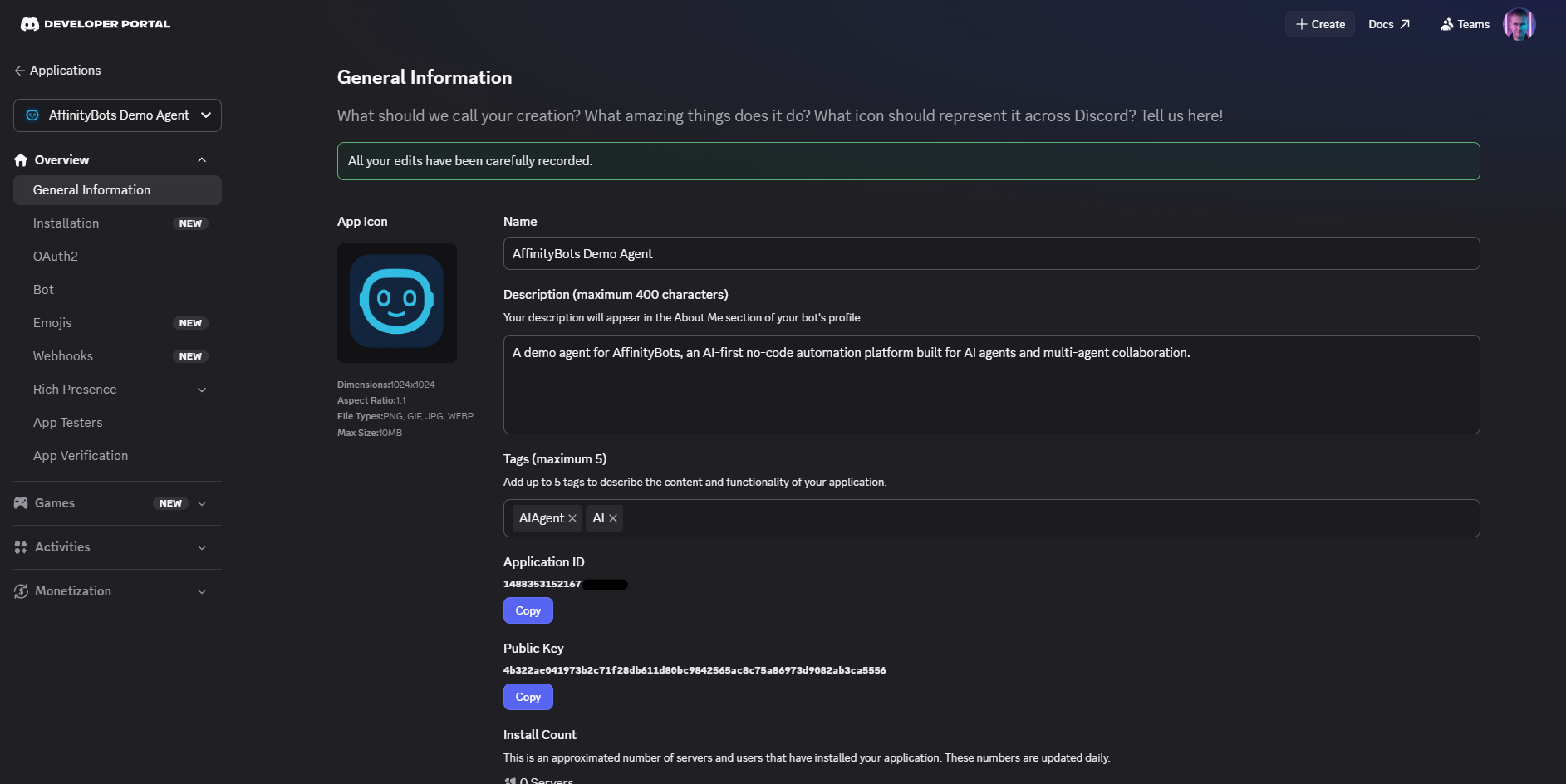
Step 2 — Create a Bot
- In the left sidebar, click Bot
- Click Reset Token (or Add Bot if this is a new app) and confirm
- Copy the bot token — you'll need it in the next section
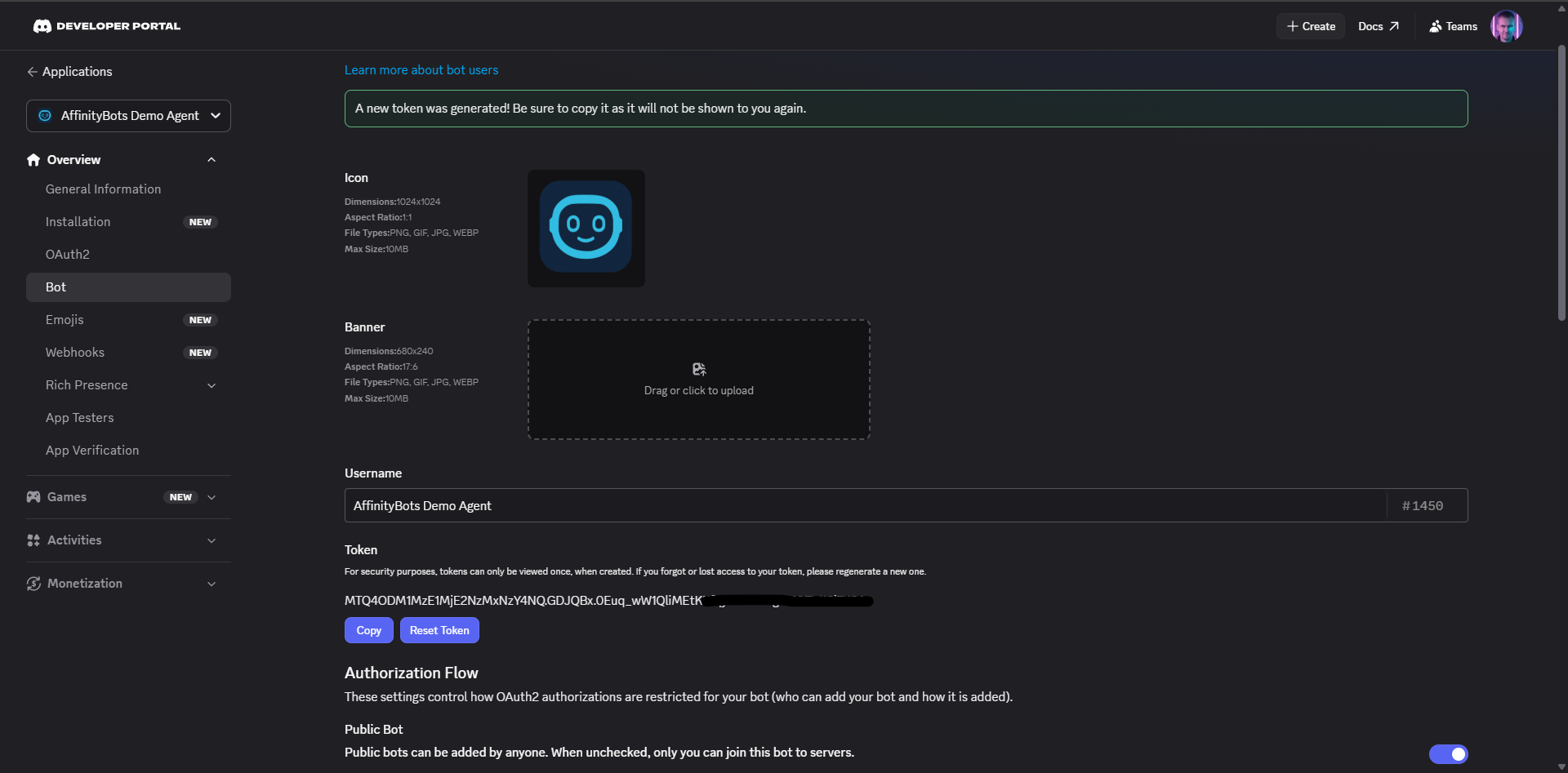
[!WARNING] Treat your bot token like a password. Never share it or commit it to source control. If it's exposed, reset it immediately in the Bot settings.
Step 3 — Connect in Deployment Settings
- Navigate to your agent and click Deploy Agent
- Select your active deployment and open the Discord tab
- Fill in all three fields:
- Bot Token — from Step 2
- Application ID — from Step 1 (General Information)
- Public Key — from Step 1 (General Information)
- Click Connect Discord Bot
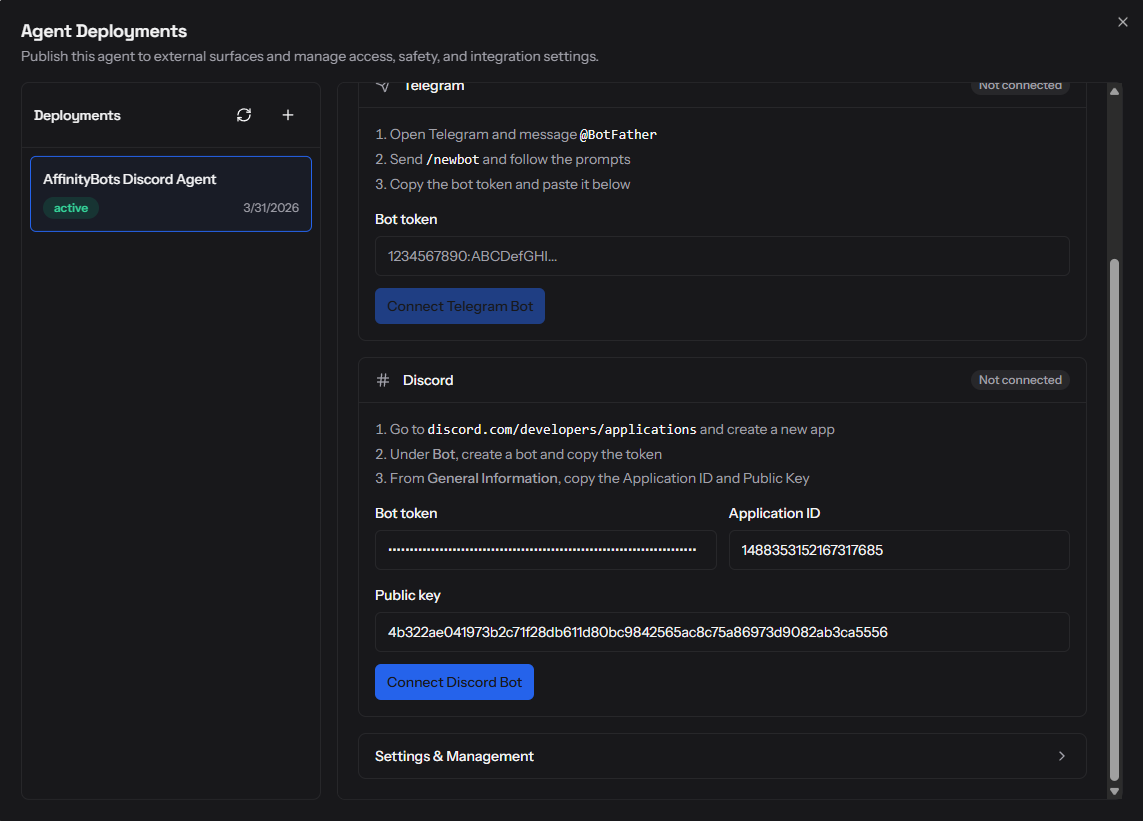
After connecting, the system validates your credentials with Discord and registers the /ask slash command globally on your application.
Step 4 — Set the Interactions Endpoint URL
This is the one manual step required by Discord. You need to tell Discord where to send slash command interactions.
- After connecting, copy the Interactions Endpoint URL shown in the Discord tab
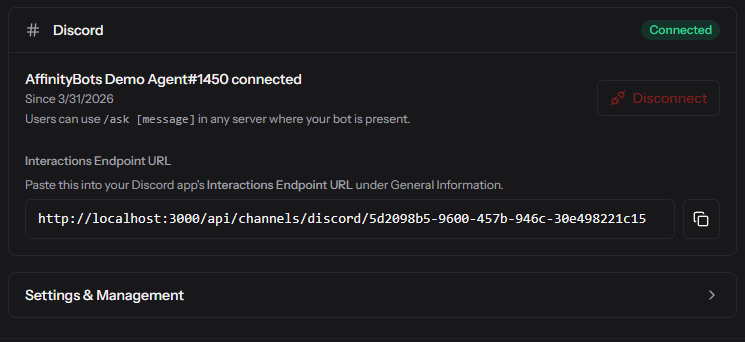
- Back in the Discord developer portal, open your application
- Under General Information, paste the URL into the Interactions Endpoint URL field
- Click Save Changes — Discord will send a test request to verify the endpoint
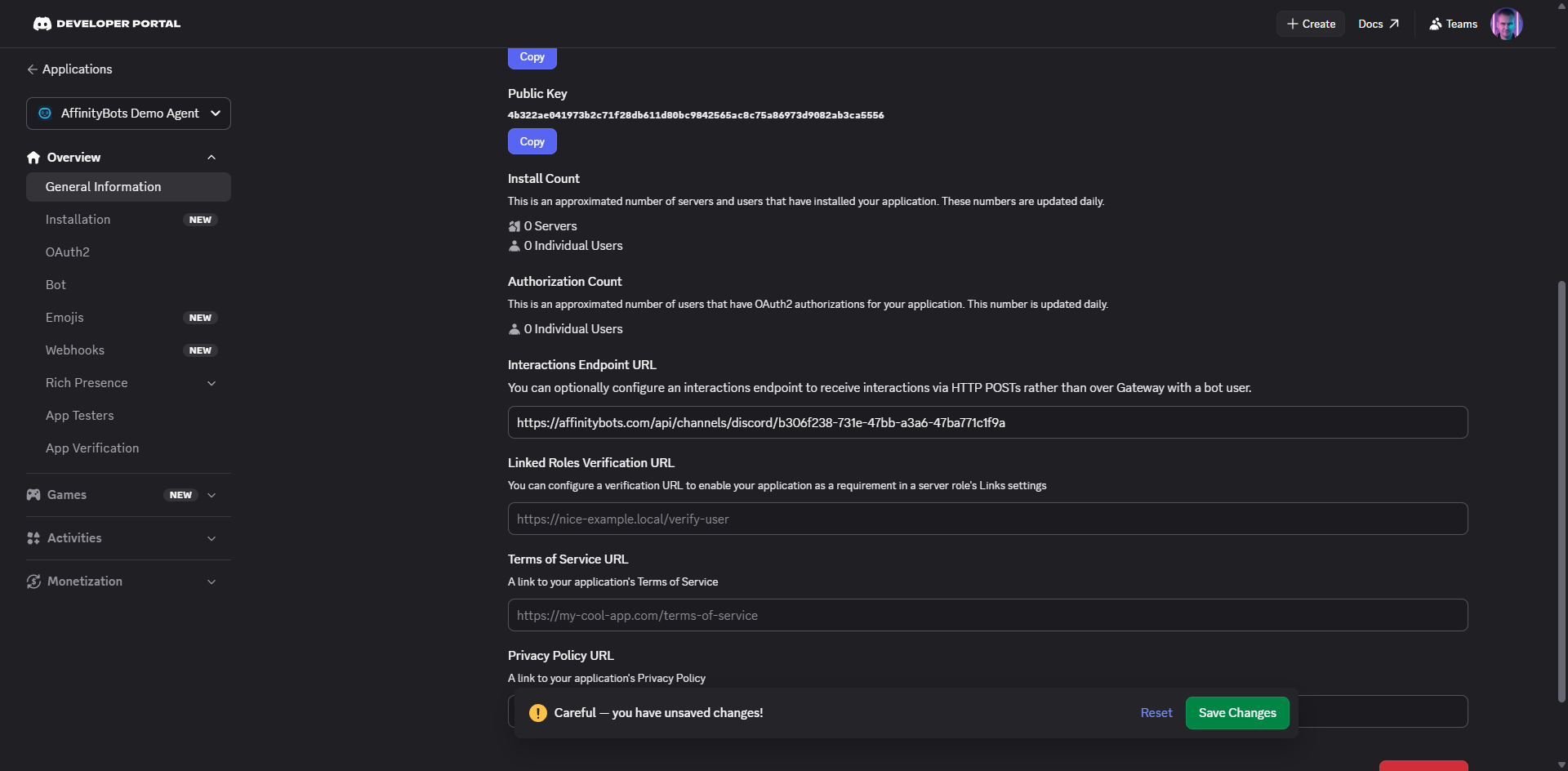
[!NOTE] Discord verifies the endpoint by sending a PING request. This happens automatically — if the URL is correct and your deployment is active, it will pass immediately.
Step 5 — Invite the Bot to a Server
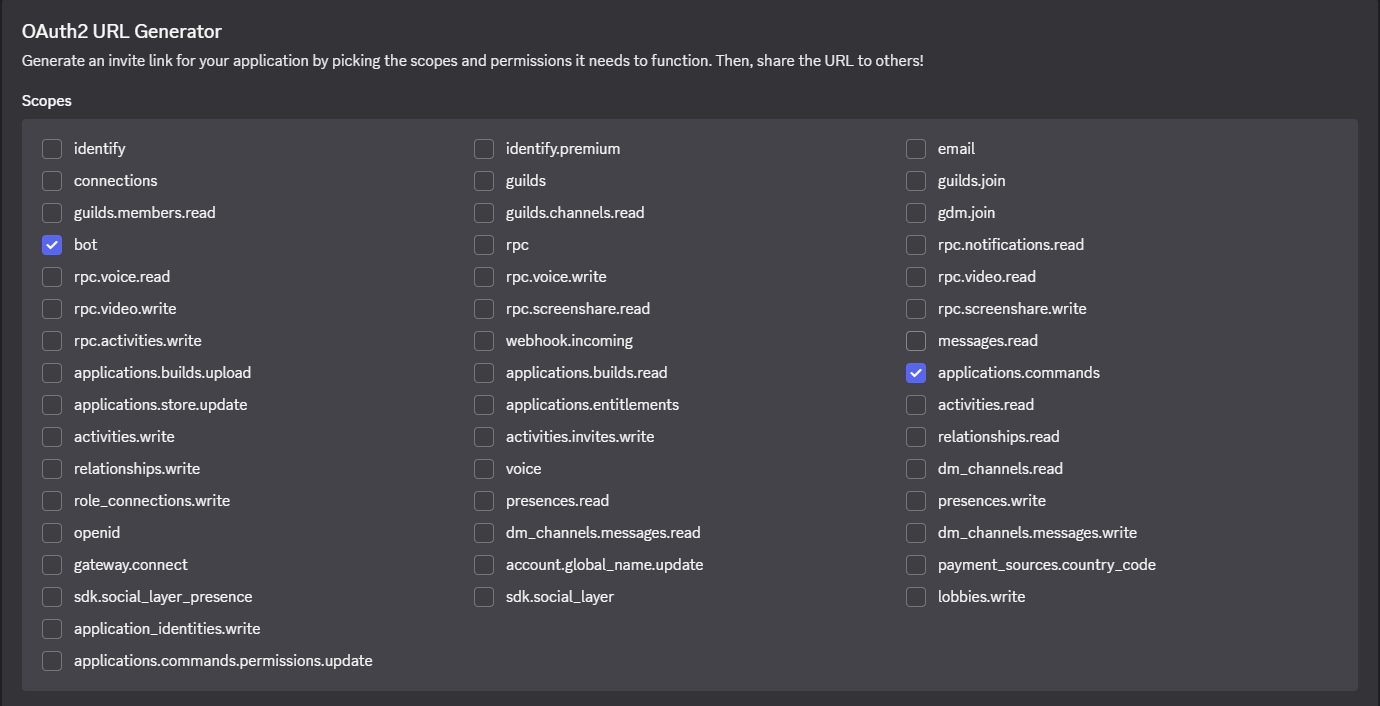
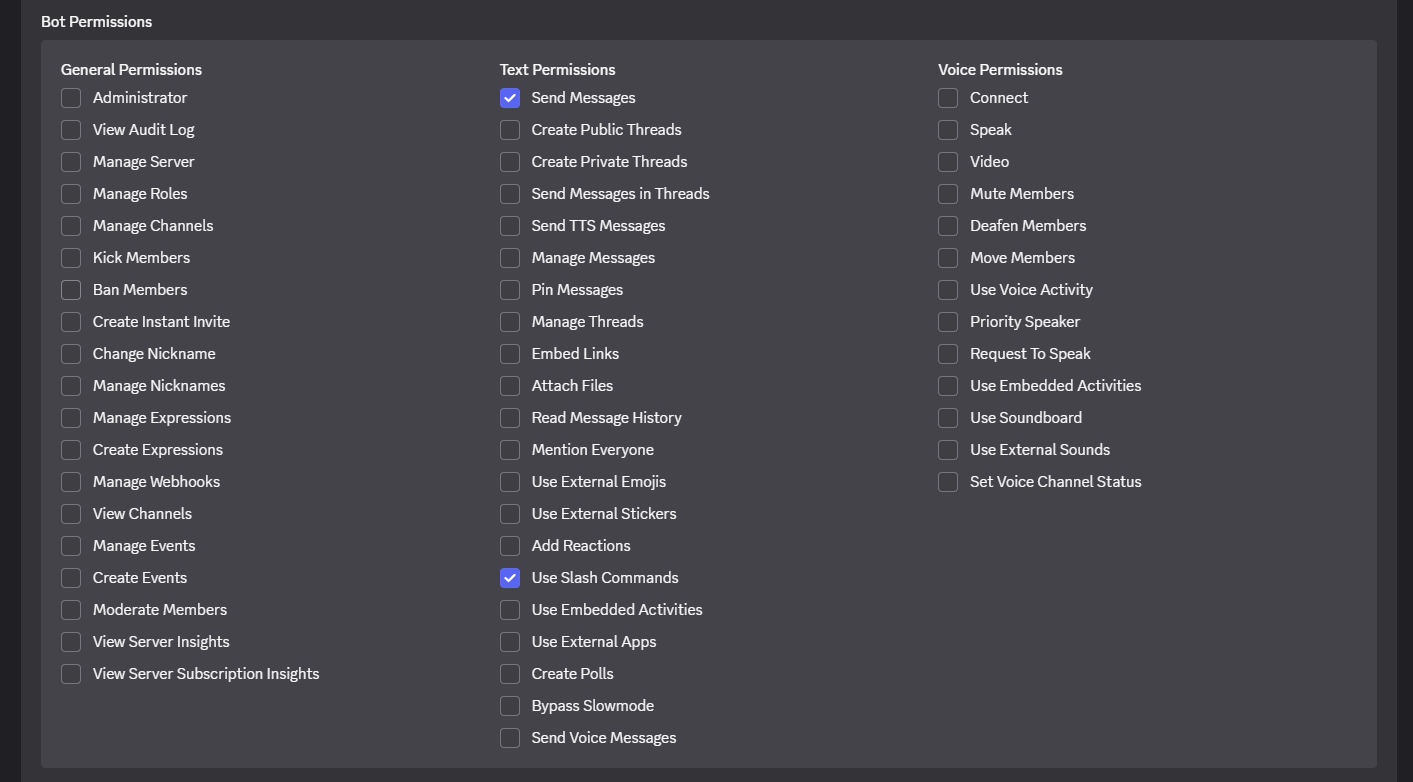
- In the Discord developer portal, go to OAuth2 → URL Generator
- Under Scopes, check
botandapplications.commands - Under Bot Permissions, select at minimum Send Messages and Use Slash Commands
- Copy the generated URL and open it in your browser to invite the bot to your server
Step 6 — Test It
In any channel your bot has access to, type /ask and you'll see the command appear in Discord's autocomplete. Fill in your message and send.
Your agent will respond directly in the channel. If the agent takes more than a second or two, Discord will show a "thinking" indicator until the response is ready.

Conversation Memory
Conversation context is tracked per user per channel. Two different users in the same channel each get their own separate conversation thread, and the same user asking questions in two different channels also gets separate threads.
This maps to the same memory system used everywhere else — long-term memory applies if enabled on your agent.
Rate Limits
The rate limits and concurrency settings from your deployment apply to Discord interactions. If a user triggers the rate limit, they'll receive a message saying to wait before trying again.
Disconnecting
To remove Discord from a deployment, open the Discord tab and click Disconnect. This removes the stored credentials. The /ask slash command will stop working immediately, though it may still appear in Discord's autocomplete until Discord's cache clears.
[!TIP] You can also delete the slash command directly in the Discord developer portal under Applications → [Your App] → Commands if you want it removed from autocomplete right away.
Supported Interactions
The Discord integration currently handles the /ask slash command only. Direct messages (DMs) to the bot and @mentions in channels are not processed. Standard message monitoring is not supported due to Discord's serverless interaction model.