
Deploy to Telegram
Connect your AI agent to a Telegram bot so users can chat with it directly inside Telegram.
Once your agent is deployed, you can connect it to a Telegram bot. Any user who messages your bot will be speaking directly with your AI agent — with full conversation memory across sessions.
How It Works
Each Telegram conversation is mapped to a persistent thread in your agent. That means:
- Users pick up right where they left off across sessions
- Your agent remembers context within a conversation
- Rate limits and concurrency controls from your deployment apply automatically
Prerequisites
- An active agent deployment (status must be Active — not draft or paused)
- A Telegram account to create a bot via BotFather
Step 1 — Create a Telegram Bot
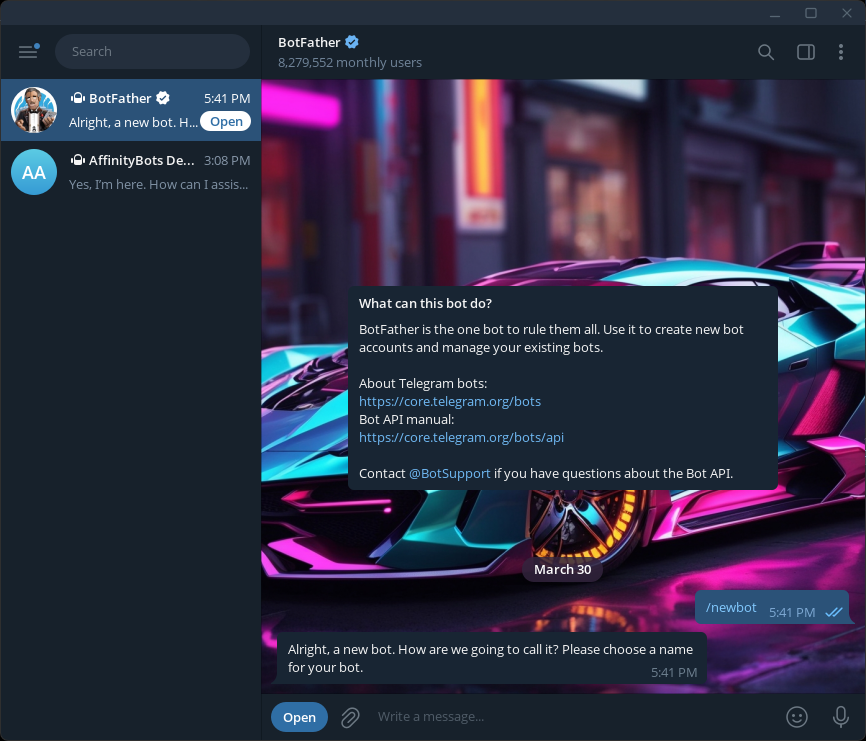
- Open Telegram and search for @BotFather
- Send
/newbot - Follow the prompts to name your bot and choose a username (must end in
bot, e.g.my_research_bot) - BotFather will reply with your bot token — keep this ready
[!TIP] You can also run
/setdescriptionand/setuserpicin BotFather to give your bot a profile picture and description that users will see before starting a chat.
Step 2 — Open Deployment Settings
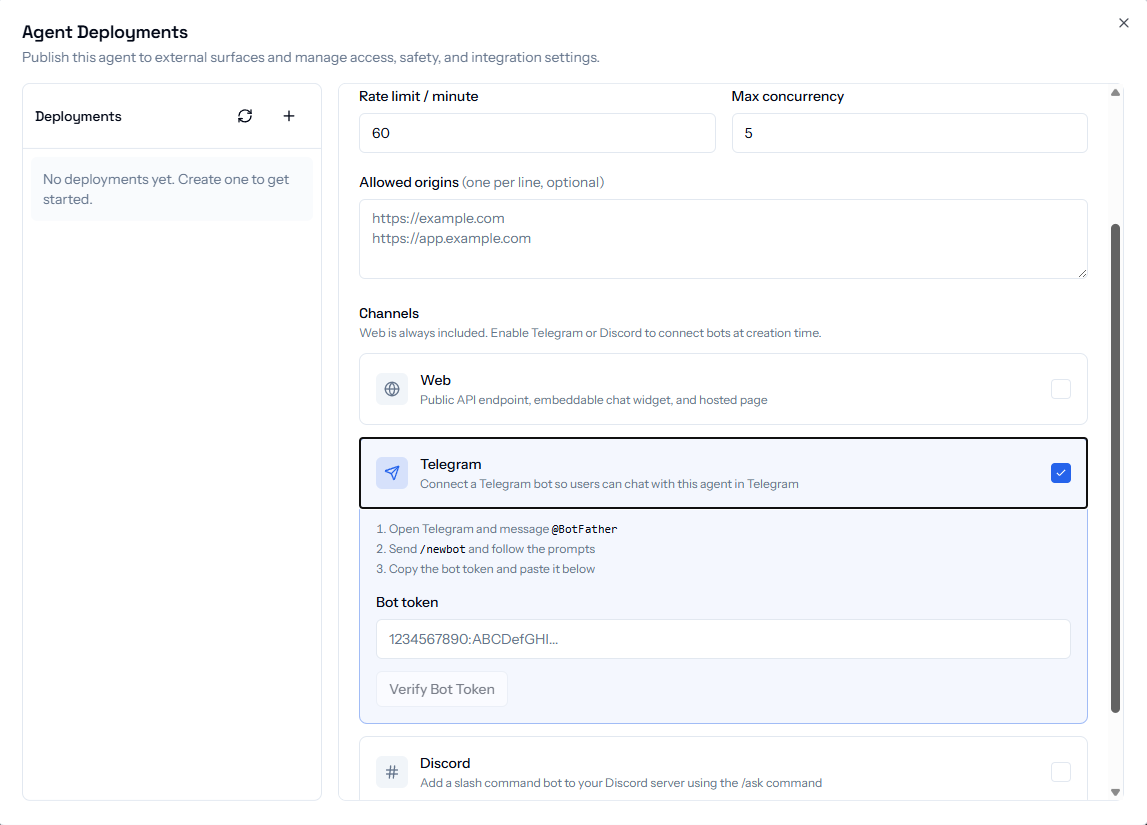
- Navigate to your agent in the Agents section
- Click Deploy Agent in the top-right of the builder
- Select the deployment you want to connect Telegram to (it must be Active)
- Click the Telegram tab in the deployment panel
Step 3 — Connect Your Bot
- Paste your bot token into the Bot Token field
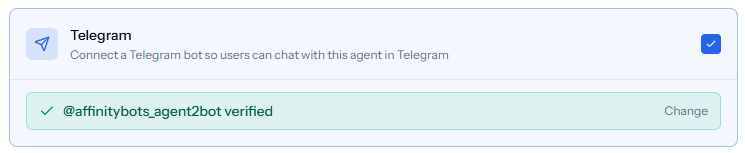
- Click Connect Telegram Bot
The system will validate your token with Telegram and register a webhook automatically. Within a few seconds you'll see a confirmation showing your bot's username.
Step 4 — Test It
Open Telegram and send a message to your bot. Your agent will respond, using the same capabilities, tools, and knowledge base it uses everywhere else.
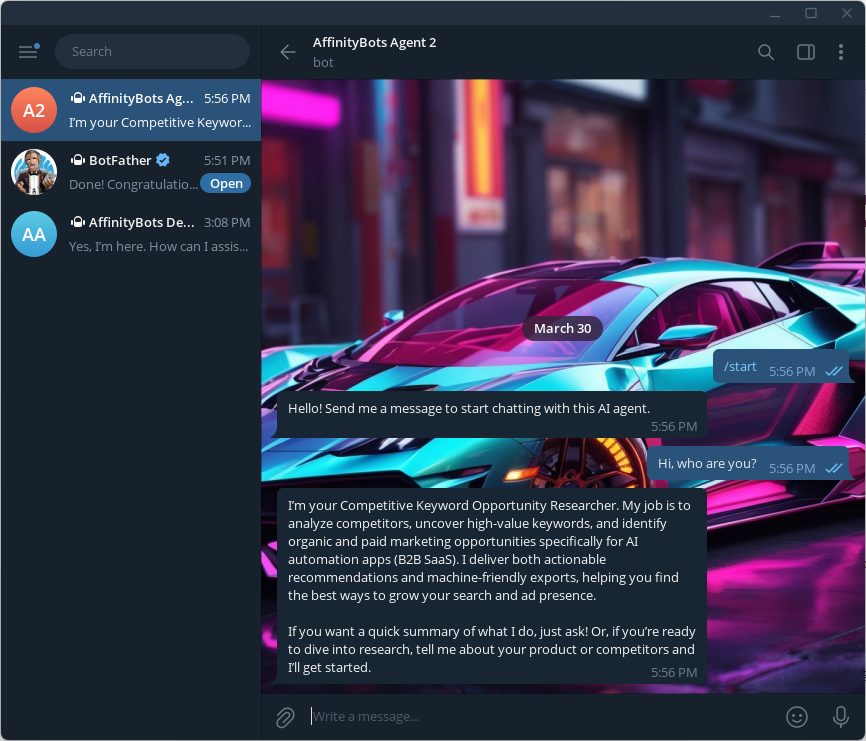
[!NOTE] The first response may take a few seconds while the agent's thread is initialized. Subsequent messages in the same conversation will be faster.
Conversation Memory
Each Telegram user (identified by their Telegram chat ID) gets their own persistent conversation thread. The agent maintains full context across messages, even across days.
This maps to the same memory system used by the web chat — if your agent has long-term memory enabled, it applies here too.
Rate Limits
The rate limits and concurrency settings from your deployment apply to Telegram as well. If a user sends messages too quickly, they'll be silently dropped until the rate window resets. You can adjust these limits in the Settings tab of your deployment.
Disconnecting
To disconnect Telegram from a deployment, open the Telegram tab and click Disconnect. This deregisters the webhook from Telegram and removes the bot token from your deployment. The bot will stop responding immediately.
[!WARNING] If you Revoke a deployment's public key, the Telegram connection remains active but the deployment will stop serving requests until it is reactivated.
Supported Message Types
The Telegram integration currently handles text messages only. The following are silently ignored:
- Photos, videos, documents, voice messages, stickers
- Bot commands other than
/start(which shows a welcome message) - Forwarded messages, polls, and other special message types
Support for additional message types may be added in future updates.